
Tasks & Alerts
Casefriend Makes it easy to create Tasks & Alerts so that you and your team are reminded about the important things to do on a case.
You can use tasks and alerts to track action you want to take on a Case or delegate an action to another attorney or staff.
⚠️Note: The Casefriend Tasks & Alerts feature has been enhanced from the ground up to better support how attorneys and staff can benefit from this feature.
⚠️You can use Tasks & Alerts to create tasks related to a Case or a specific event. Tasks will also be pushed to your third-party calendar, e.g.: Outlook. You can create alerts to be reminded of a Task or upcoming Event. Alerts appear only in Casefriend.
Key aspects of Casefriend Tasks & Alerts:
- Create & manage Tasks related to Cases and Events | Creating a Task
- Add an Alert to be reminded of an upcoming Task | Creating a Task
- NEW! Create a multi-day or All-Day task | Tasks & Alert values
- NEW! Create a Stand-Alone Alert | Create a Stand-Alone Alert (new!)
- Delegate Tasks and Alerts to others (up to 3)
- NEW! Visual indicators when a Task has been completed | Marking a Task Complete (new!)
- NEW! Track all your tasks in My Tasks | Tasks Dashboard
- Updated Enhanced Alert management from the Alerts panel | Alerts Panel
- Push all your Tasks to your Outlook calendar
Creating a Task
From the Task & Alerts tab on the Case Info page or from within an Event select he [ New Task & Alert ] button
Complete the values Task & Alert form and click Save
Create a Stand-Alone Alert (new!)
Now you can create an Alert without creating a Task.
Click the New Task & Alert button, enter a Title for your Alert and then only enter an Alert Date and Time. Click save. You will receive a notification in Casefriend when the alert date and time is met, and can manage all upcoming alerts from the Alerts Panel.
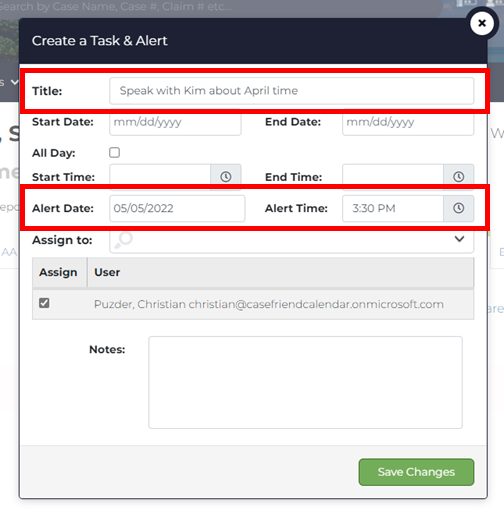
Tasks & Alert values
Title: The name of the Task or Alert. This will appear in the Task & Alert tab, Alerts Panel and the Casefriend Calendars. If you export the Task to Outlook it will be used as the Title.
Start Date/End Date: Set the days you will be active in your Task. The Current day will be set by default. You can change the end date to have a task span multiple days.
All Day: Select this option to set a task as an all-day task in the Casefriend calendar and Outlook or other third-party calendar
Start Time/End Time: Set the Start and End time for the Task
Alerts
Alert Date: Set the date to trigger the Alert
Alert Time: Set the time to trigger the Alert
Assign to: Assign the Task or Alert to a total of 3 members of your firm.
Managing Tasks
When you create a Task the Task is available on the Tasks & Alerts tab, the Casefriend Firm and Personal Calendars and the Tasks & Alerts widget on you homepage. You can manage your Tasks from any of these locations
Tasks Tab
All existing Tasks will appear in the Case Info Tasks & Alerts tab. If the Task is associated with an Event, it will also appear in the Task & Alerts tab of the Event.
Important - Alerts no longer appear in the Tasks & Alerts tab. While you create an Alert from here, you can manage your alerts from the Alerts Panel in The Hopper.
Marking a Task Complete
Track completed Tasks!
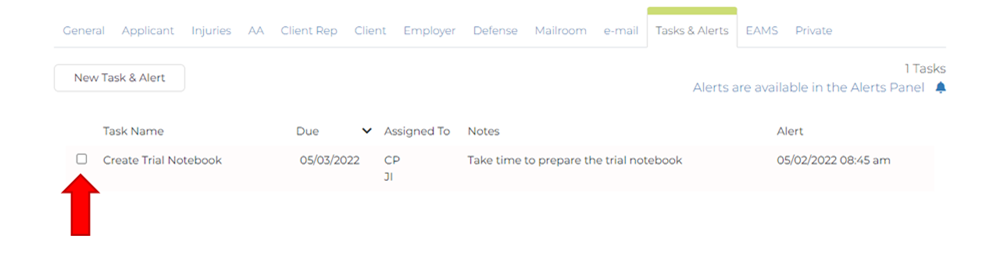
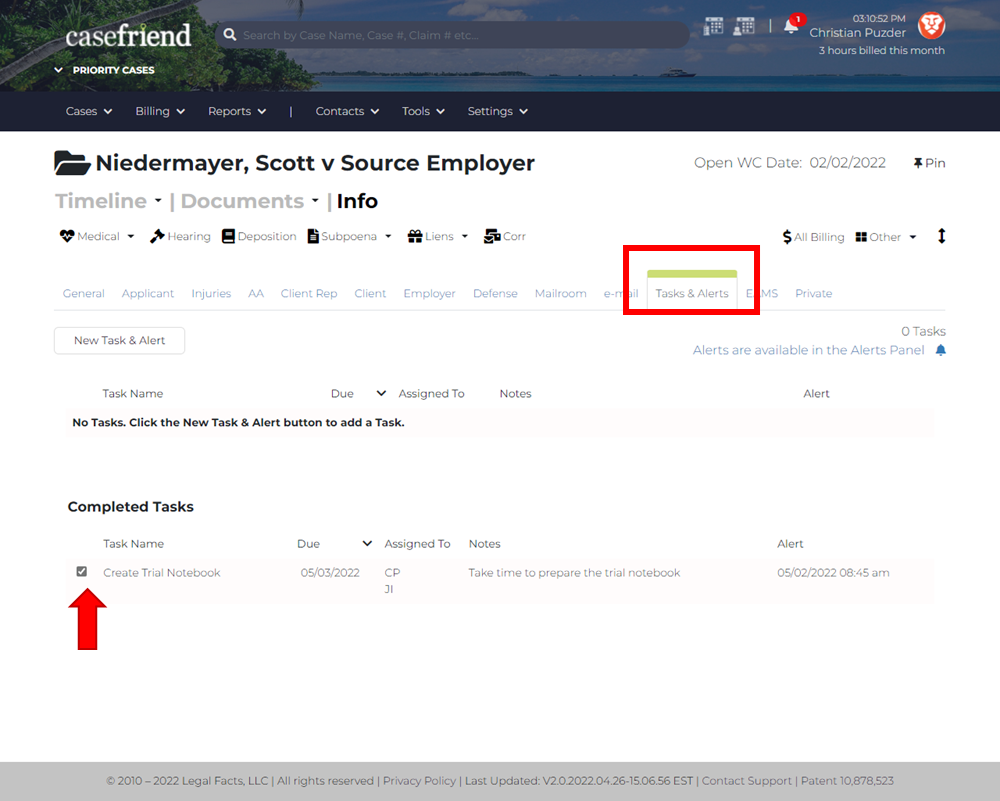
Next to each task in the Tasks & Alerts tab is a checkbox. Once selected the Task is marked complete and grouped with other Completed Tasks
My Tasks (new!)
You can now track Tasks across all your cases from within your Casefriend Personal Calendar, and all Tasks across all cases in your firm from the Casefriend Firm Calendar.
Click the new My Tasks option from the Profile menu to see all Tasks assigned to you in your Casefriend Personal Calendar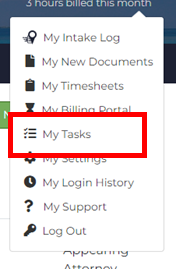
Alerts Panel
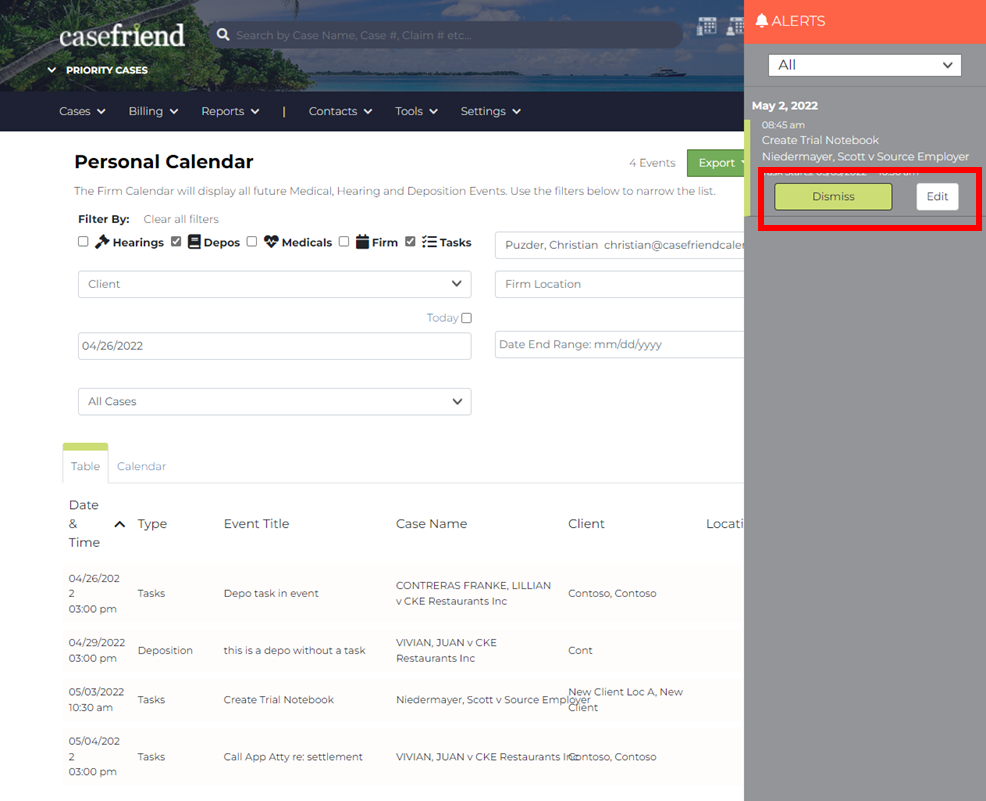
You can manage existing Alerts from the Alerts Panel. Here you can Dismiss an Alert or click Edit to modify the Alert.
Comments
0 comments
Please sign in to leave a comment.